Meeting Alerts for Mac
Meeting Alerts helps you walk into meetings on time. It keeps your next meeting in the menu bar, and three minutes before it starts, a panel opens in the centre of your screen with the details and a Join button. It stays there until you act on it. No more hunting through your calendar for the link at the last second.
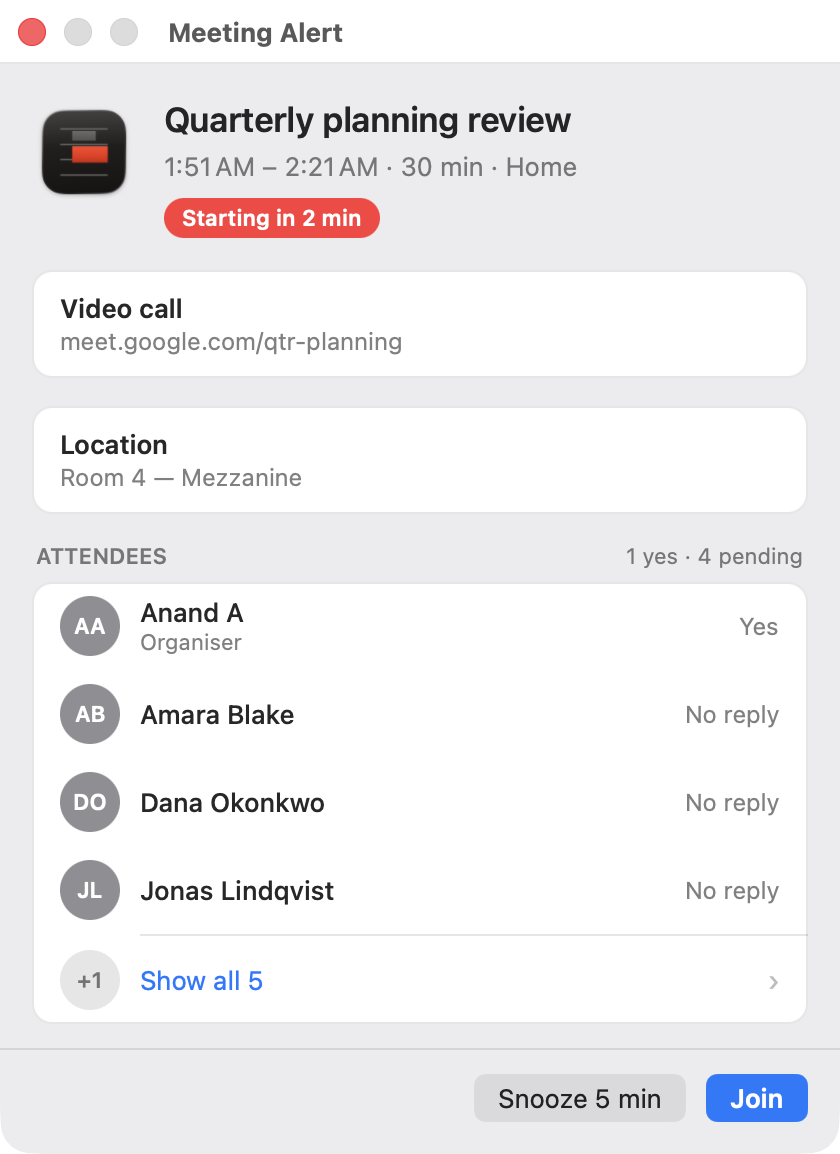
What it does for you
- Shows what’s next. Your next meeting sits in the menu bar, so one glance tells you the time and the title.
- Warns you before it starts. A panel appears three minutes ahead. A notification in the corner is easy to miss; this one opens in the middle of your screen, where you’re already looking.
- Gets you into the call. Press Join or hit Return. It works with Zoom, Google Meet, Microsoft Teams and Webex.
- Gives you more time. Snooze brings the panel back about a minute before the meeting.
- Shows who’s coming. The panel lists the attendees and whether they’ve replied.
Each meeting alerts once. If you dismiss it, it doesn’t come back.
Install
- Download
MeetingAlerts.dmgfrom the latest release. - Open it and drag Meeting Alerts into your Applications folder.
- Open it from Applications.
- When it asks for calendar access, choose Full Access. Without it, the app can’t read your meeting details.
- Quit and open it once more.
There’s no Dock icon. Look for the app in the menu bar. It needs macOS 13 (Ventura) or later, and runs on both Apple Silicon and Intel Macs.
Make it yours
Click the menu bar icon and choose Settings… to pick how the next meeting is shown:
| Style | What you see |
|---|---|
| Time and title | 10:00 AM Design review (30m) |
| Title only | Design review |
| Countdown and title | in 15m Design review (30m) |
| Countdown only | in 15m |
Once a meeting has started, the menu bar counts down the time left instead. Hover over the text to see the full title, the times and the video link. Click the icon to see your next three meetings.
Your calendar stays private
The app only reads your calendar. It never changes anything, and nothing leaves your Mac. It has no servers and no tracking.
If something looks wrong
- No meetings showing. Open System Settings → Privacy & Security → Calendars and make sure Meeting Alerts has Full Access. Then restart the app.
- The app closed after you gave it access. That’s normal the first time. Open it again and it stays.
- A meeting looks out of date. The app checks every 30 seconds. Click the icon and choose Refresh to check right now.
It shows today’s and tomorrow’s meetings, and skips all-day events.
Get it
Download Meeting Alerts. It’s free, and the source is on GitHub.