A Sand Timer for Your Mac
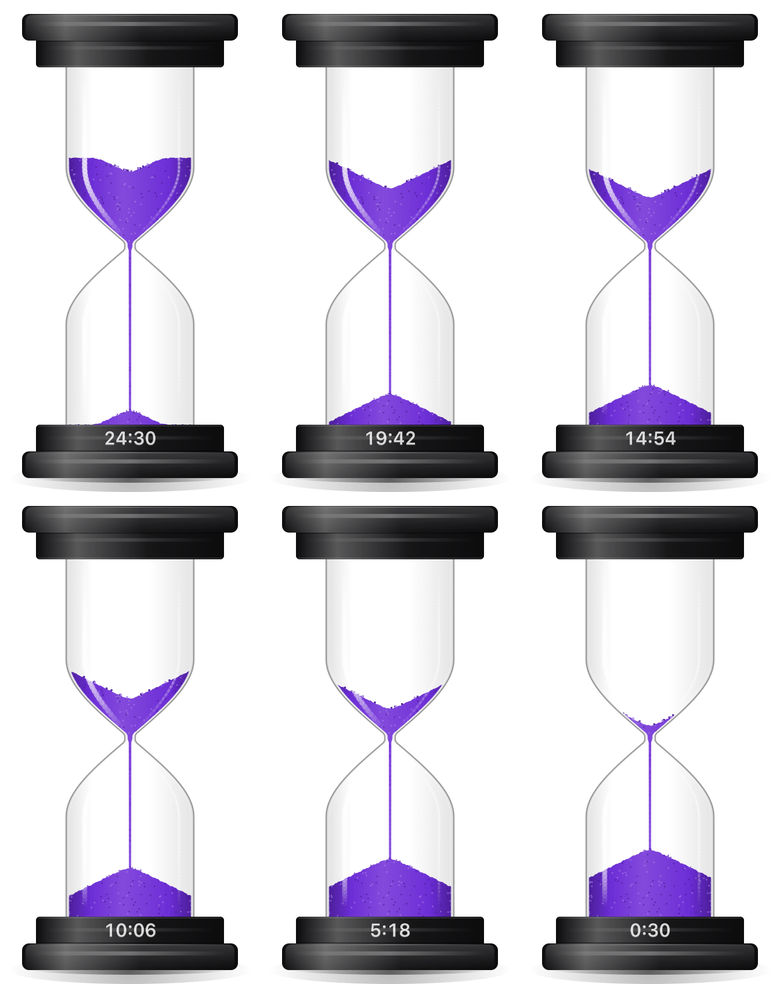
Sand Timer is an hourglass that sits on your Mac’s desktop, above your other windows. You see how much time is left without reading a number: about a third gone, plenty left. This is a short manual for using it.
Install
- Download the
.dmgfrom the latest release. - Open it and drag Sand Timer into Applications.
- Open it from Applications.
It needs macOS 13 or later, on Apple Silicon or Intel. It’s signed and notarized, so it opens without a warning. There’s no account and no setup. The timer has no Dock icon; it just appears on your desktop.
Start, pause and end
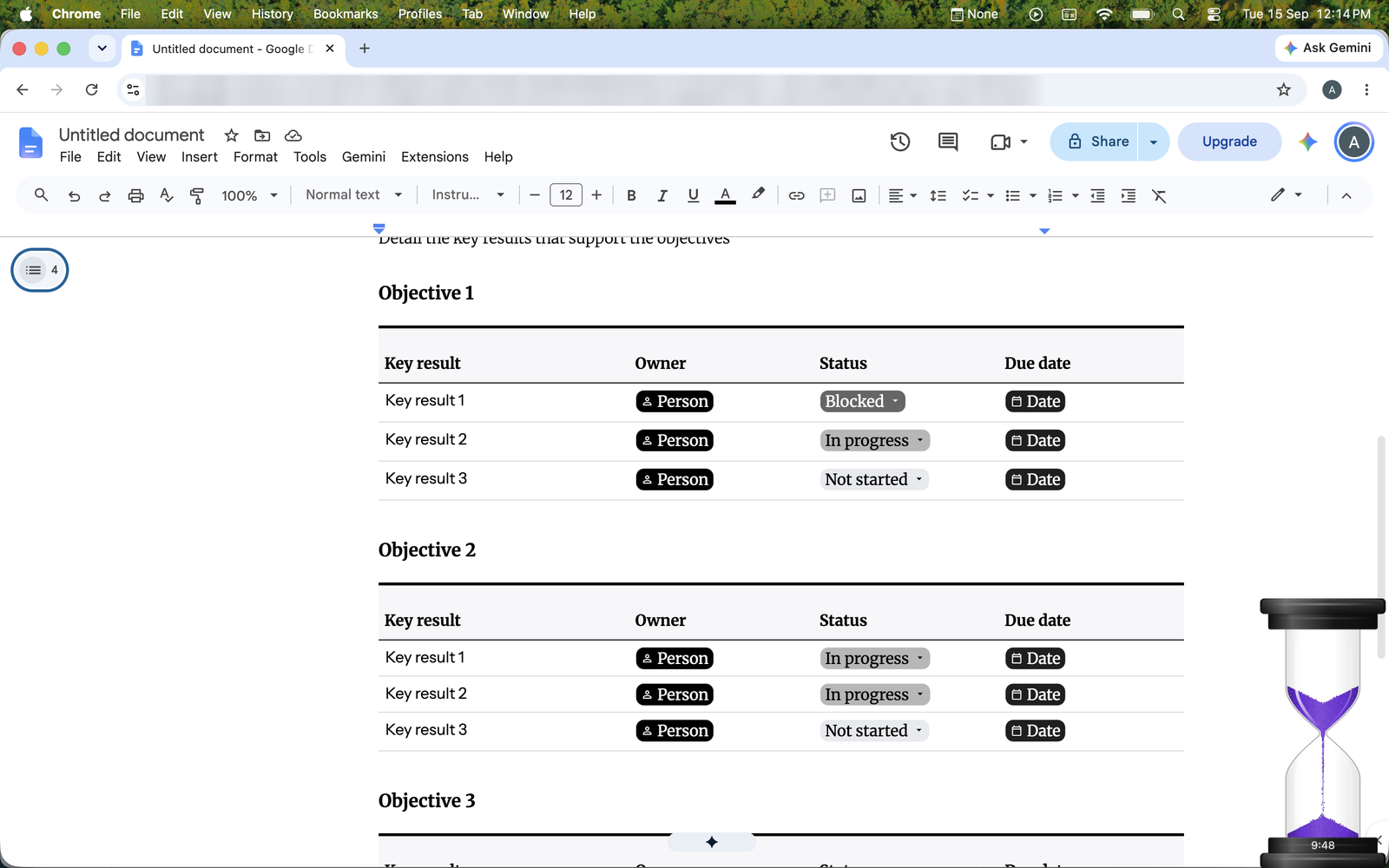
- Start: click the timer.
- Pause: click it again. It tips onto its side, the way you’d lay a real one down. Click once more to carry on.
- Restart: right-click → Restart.
- End early: right-click → End Session. The time you ran is kept, the sand settles to the bottom, and the timer waits for the next session.
When the sand runs out, it chimes.
Choose how long
Right-click → Duration. Anything from 1 to 60 minutes, including 25 for a Pomodoro 🍅 and 6 or 12 minutes if you bill in tenths of an hour.
Move it
- Drag it anywhere. Let go and it drops to the bottom of the screen.
- Tilt it by pushing the top sideways. Push too far and it topples over and pauses; lift it back up by the top.
- To leave it floating where you put it, turn on Float Anywhere in Settings.
Set a daily target
Right-click → Settings… → tick Daily target and enter minutes or hours.
A line along the base then fills with sand as the day’s time adds up, with small marks at
round amounts (each hour of a three-hour target, say). It glows softly when you reach the
target. Rest the pointer on the base to see the exact figure, like 1:18:42/3:00:00.
Work in projects
Projects let you see where your time goes.
- Right-click → Settings… → Add Project. Give it a name and pick a colour.
- Right-click → Project and choose one.
The sand turns the project’s colour, and its name is printed faintly on the top cap (hover over the timer to brighten it). Time you run is counted against that project.
Switching projects:
- From the menu: right-click → Project.
- By shaking: grab the timer and shake it side to side. It moves to the next project with Shake ticked in Settings.
One Thing at a Time (on by default) keeps the same project for a whole session, so you’re not tempted to hop between things. During a session the projects in the menu are greyed out and shaking does nothing. When you’re ready to move on, choose End Session (it’s in the Project menu too), then pick the next project. Turn it off in Settings if you’d rather switch freely.
Renaming a project or changing its colour never affects the time already recorded. Removing one hides it from the menu but keeps its time in Statistics.
See your statistics
Right-click → Statistics…
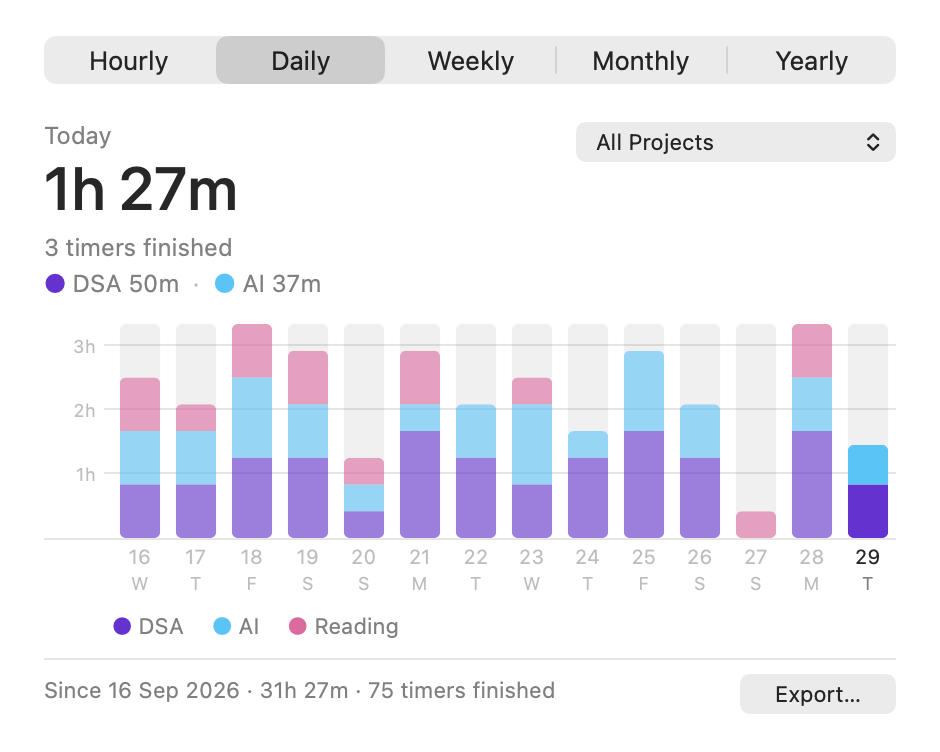
- Pick Hourly, Daily, Weekly, Monthly or Yearly at the top.
- Hover a bar to read that hour, day or week.
- With projects, each bar is split by project colour, with a legend underneath. Use the All Projects menu to look at one project on its own.
- Export… saves everything as a CSV file for a spreadsheet or timesheet, with a column per project.
Only time the sand was actually running is counted, and all of it stays on your Mac.
Hide it in the menu bar
Right-click → Hide to Menu Bar. An hourglass appears in the menu bar with the time left (and your daily figure, if you set a target). Its menu lets you pause, resume, restart, end the session, switch project and bring the timer back.
Sounds
Right-click to turn the flip, fall and finish sounds on or off, set how loud the falling sand is (it starts silent), and add a gentle chime each minute.
Settings at a glance
Right-click → Settings…
- Daily target: the line on the base.
- Projects: add, rename, recolour, choose which ones Shake moves between, and remove.
- One Thing at a Time: one project per session; end the session to switch.
- Start at Login: opens the timer when you log in.
- Float Anywhere: stays where you drop it instead of falling to the bottom.
- Control from Claude & Shortcuts: lets other apps start, pause, resume, restart and end the timer.
- Check for Updates: looks for a new version once a day. Off means no network use at all.
Changes apply straight away. The timer also remembers where it was: quit it and open it again, and a running or paused session picks up where it left off.
Use it with Claude or Shortcuts
Sand Timer includes an MCP server, so Claude can answer questions like “how much did I work on DSA this week?”. Add it in Claude Code with:
claude mcp add sand-timer -- /Applications/SandTimer.app/Contents/MacOS/sand-timer-mcp
With Control from Claude & Shortcuts turned on, Claude can also start, pause or end the
timer for you, and Shortcuts or a script can use links like sandtimer://start?minutes=25,
sandtimer://pause and sandtimer://end. The
README covers Claude Desktop
too.
Get it
Download Sand Timer. It’s free and open source under the MIT licence: the source is here.